Whop Audio-Only and Video-Only Downloads: Both Free Forever, No Credit Used
Audio-only and video-only Whop downloads are unlimited and free forever — only the merged video+audio MP4 spends a credit. How to use either, and how to merge the two back into a full-quality file for nothing.
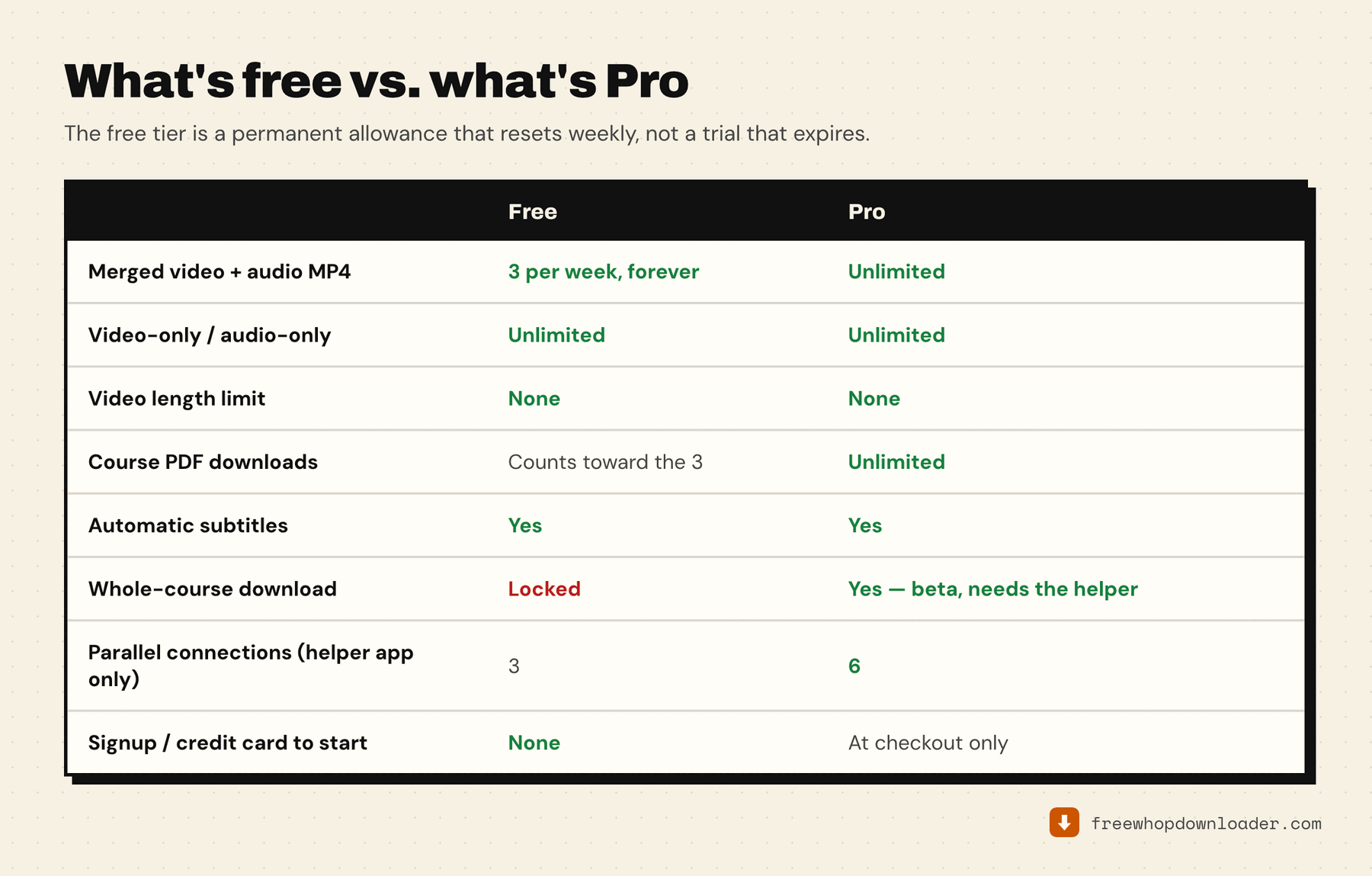
Download Whop audio only and you spend nothing — not money, and not one of your weekly free downloads. The same is true of video-only. Only the merged video+audio MP4 (and a saved course PDF) draws on the 3-per-week free-tier allowance. Audio-only and video-only are unlimited, forever, on every plan including free. Not "unlimited on Pro." Unlimited, period, whether you've ever paid a cent or not.
That's a deliberate design choice, not a trial gimmick — fetching a single stream on its own is a much lighter operation than merging two streams into a combined file, which is why the merged format is the one the weekly limit applies to.
Why this matters
If you're studying a course over time rather than archiving the whole thing as merged video, you can realistically never hit a limit:
- Audio-only — for lecture-style content, panel discussions, and Q&A calls where the video track adds nothing you actually need. Smaller file, faster download, never counts against your weekly cap.
- Video-only — useful when you want the visual (a whiteboard walkthrough, a screen-share demo) but don't need the merge step, or when you plan to sync your own audio separately. Same deal: free, unlimited, forever.
- Video + audio (merged) — the only download format that uses one of your 3 free downloads per week. Most people default to it because it's a single ready-to-watch file, but it's the one format the free tier rations.
How to use either
- Open the Whop lesson, refresh the page, then press play. The extension can only see the stream if it watches the page request it, so an already-open lesson needs a reload first. A second of playback is enough.
- Open the extension popup. The lesson appears with its own title and thumbnail.
- Scroll to the "Free forever · no length limit" block. That's where Video only and Audio only sit, right under the main download button.
- Click one. No merge step happens, which also makes these the fastest downloads the extension does. The file saves to your downloads folder, named after the lesson.
The free route to a full-quality lesson
Here's the part worth being direct about, because it's genuinely a way to save every Whop lesson for free and we'd rather you heard it from us than felt tricked later.
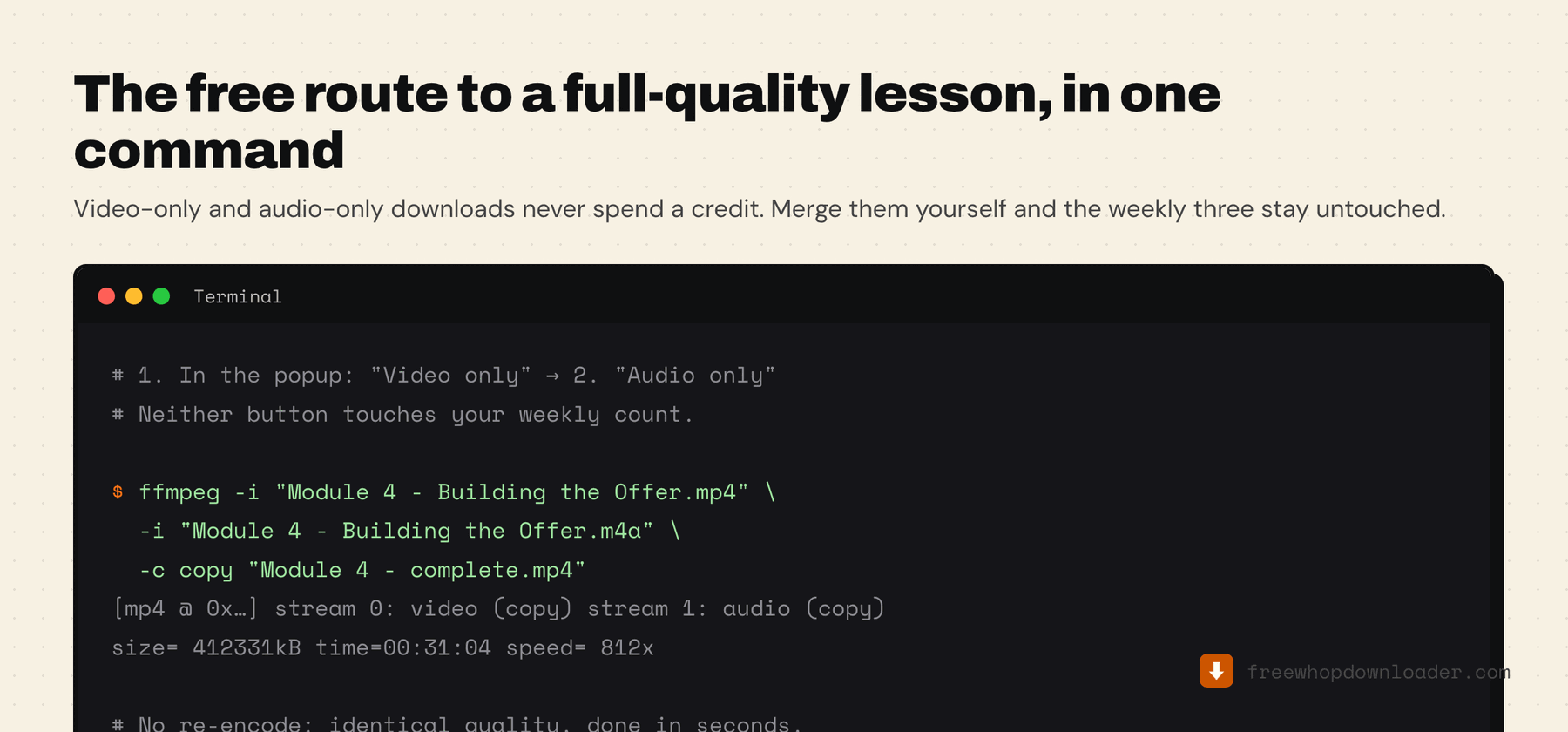
Download the video only file and the audio only file for the same lesson. Merge them locally. You now have a complete, watchable MP4 at full source quality — and your weekly three are untouched.
Merging is a stream copy, not a re-encode, so it takes seconds and loses nothing:
ffmpeg -i "Module 4 - Building the Offer.mp4" \
       -i "Module 4 - Building the Offer.m4a" \
       -c copy "Module 4 - complete.mp4"
If you'd rather not touch a terminal, HandBrake and VLC both do the same job through a normal window, free.
Do that for a hundred lessons if you want. The extension won't stop you, because those downloads never spend a credit by design.
Two details worth knowing. The separate buttons appear when the lesson's stream carries video and audio as distinct tracks — which is how Whop's Mux delivery normally works, so in practice they're there. A source that ships one already-muxed file has nothing to split, and won't show them. And video-only takes the best rendition available, exactly like the merged download, so this route costs you no quality at all.
There's a third button worth knowing about on long lessons: save video & audio as separate files. It appears when a video is large enough that the in-browser merge might run out of memory. It's the same two files as above, fetched back to back — and it doesn't spend a credit either.
So what is Pro actually for?
Skipping the merge step. Pro means you click download once and a finished file lands in your downloads folder — plus the whole-course download, which walks every lesson automatically instead of you doing the two-file dance thirty-eight times.
That's paying for convenience at scale, not for access. It's a real trade, and you're free to make it either way. The fuller version of that argument, including what the competing tools call "free," is in is there a free Whop downloader?.
What you actually get
Whop's video infrastructure (Mux) delivers video and audio as separate adaptive streams under the hood — standard for HLS delivery, not something specific to Whop. When you pick audio-only, you get that audio track exactly as embedded in the source (AAC-encoded), with no re-encoding and no quality loss. Video-only works the same way on the video side.
Neither is a stripped-down version of the merged file. They're the same underlying streams, just not combined into one container — which is precisely why merging them yourself gets you back to the original.
If you'd rather skip the extension entirely, the same two streams can be pulled with yt-dlp from the command line — free and unlimited, at the cost of finding the signed stream URL yourself each time.