How to Download Whop Course Videos (Free, Step-by-Step Guide)
How to download Whop course videos to your computer as MP4 files for offline viewing. Free, private, step-by-step, and it works on Chrome, Edge, Brave, and Opera.
If you have ever paid for a course inside a Whop community and gone looking for a download button, you already know the problem: there isn't one. This guide covers how to download Whop course videos to your own computer as clean MP4 files — for free, entirely on your own machine, and without leaving your browser.
Whop gives creators full control over their content, which is great for them and frustrating for you when you want to watch a lesson on a flight, study without burning mobile data, or keep a backup of something you paid good money for. Below: what you need, the step-by-step process, how to work through a whole course, the free audio-only and video-only routes, troubleshooting, and a straight answer on the "is it actually free?" question.
Why there's no download button on Whop
Whop hosts video the way most modern platforms do: it streams content in small chunks using HLS, served through Mux. Instead of one tidy MP4 file, the player pulls separate video and audio streams and stitches them together on the fly, switching quality based on your connection. That design is excellent for smooth playback, but it means there is no single file sitting on a server for you to right-click and save. On top of that, creators deliberately disable downloads to protect their paid content.
That is the gap the free Whop Downloader fills. It watches the page for the lesson's stream, fetches the separate tracks, and merges them back into one ordinary MP4 — the kind of file you can drop into any player, editor, or presentation. Nothing about your account is changed and nothing is uploaded anywhere; the work happens locally in your browser.
What you need before you start
You don't need much, and you almost certainly already have most of it:
- A Chromium-based browser. Chrome, Edge, Brave, and Opera. A Firefox build is planned; Safari and mobile browsers can't support this at all, for reasons that aren't going away.
- Access to the video. You must be able to actually play the video in your browser — logged into the community, with whatever access you purchased. The tool only works with content you can already watch; it cannot bypass paywalls or unlock anything you don't have permission to view.
- The extension installed. Add it from the Chrome Web Store. Free to start, no credit card, no signup.
That's the whole list. Note what isn't on it: for most videos there is no helper app, no command line, and nothing installed outside the browser. The merge runs inside the browser tab. (There is an optional local helper for hour-plus lessons and whole-course downloads — more on that below.)
How to download Whop course videos: step by step
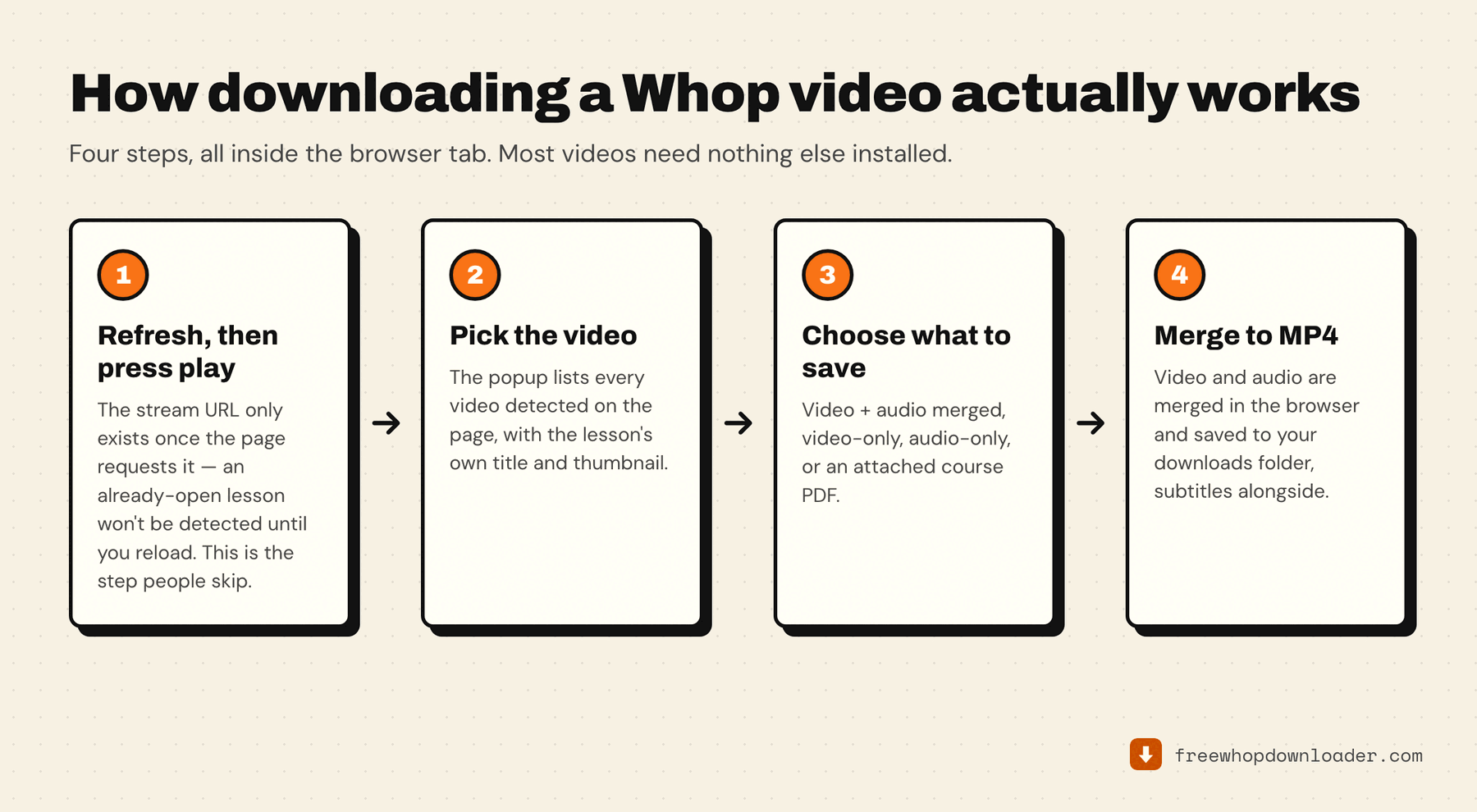
Here is the full process from a cold start. Once the extension is installed, the actual download is two clicks.
Step 1 — Install the extension
Add the downloader to your browser from the Chrome Web Store and pin it so the icon is visible in your toolbar. There's no account to create and nothing to configure.
Step 2 — Open the lesson, refresh, then press play
This is the single most important step, and the one people miss. The extension can only see the stream if it watches the page request it — so if the lesson is already open, reload the page first, then press play. A second of playback is enough.
This is also why "No video detected" is far and away the most common complaint, and why refreshing fixes it almost every time.
Step 3 — Open the popup and pick the video
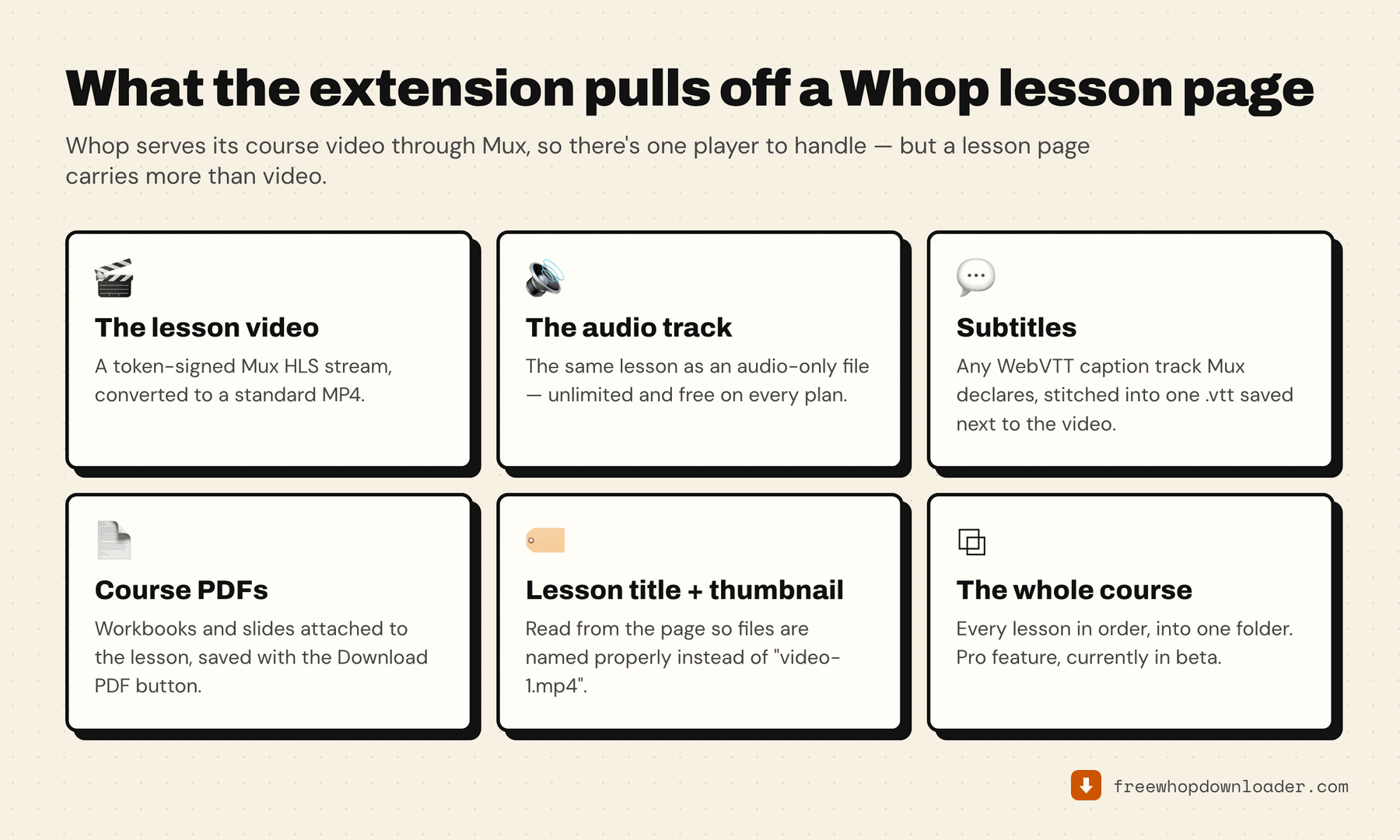
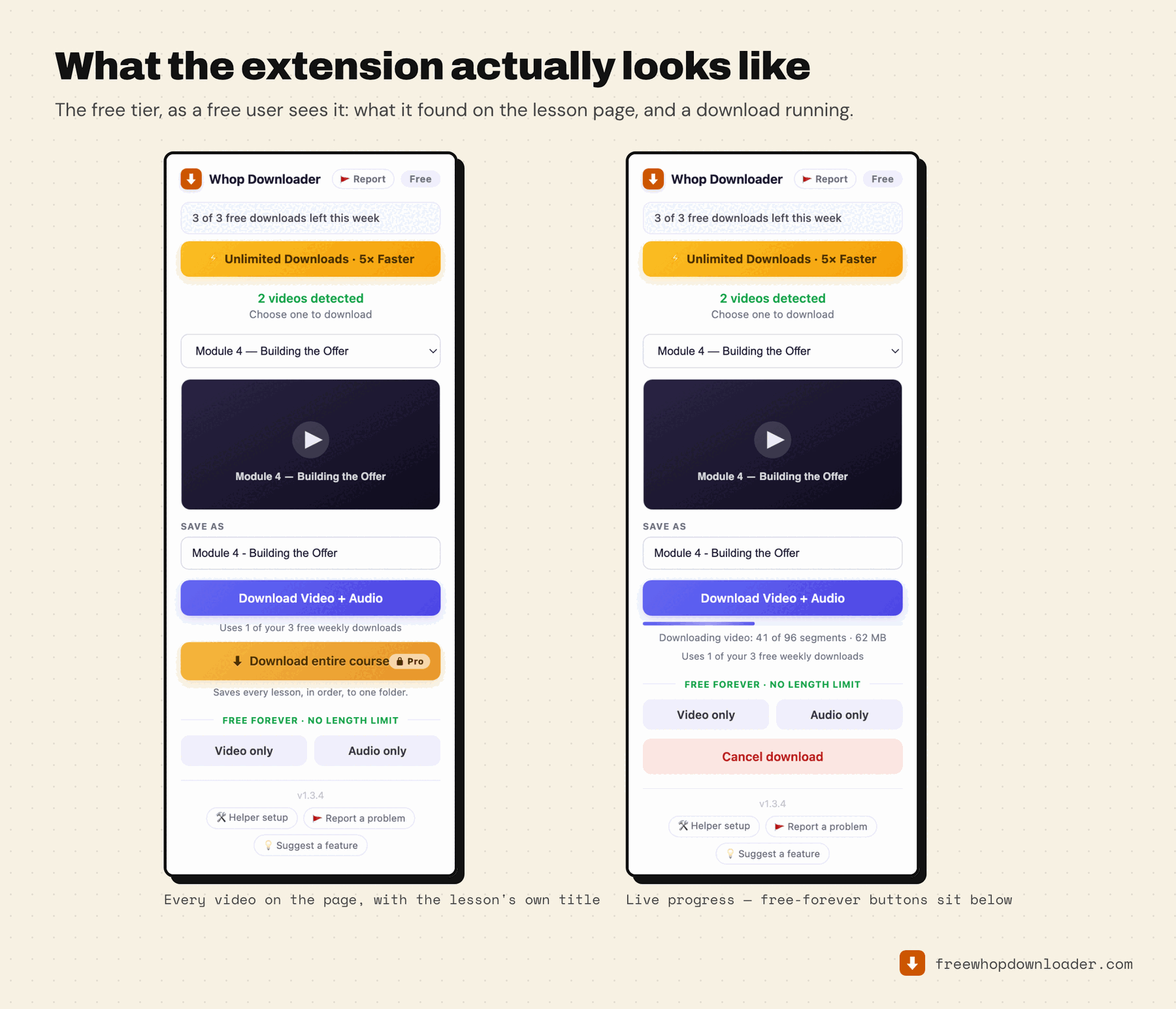
Click the extension icon. Any video found on the page is listed by its real lesson title, with the lesson's own thumbnail as a preview. If the page has more than one video, choose from the dropdown. The filename is pre-filled from the lesson title, and you can edit it before downloading.
Step 4 — Download
Click Download Video + Audio. The extension fetches the highest-quality rendition the source offers (you don't pick a resolution — it takes the best one available), merges video and audio in the browser, and saves a single MP4 to your downloads folder. If the lesson has captions, a matching .vtt subtitle file saves alongside it.
Keep the browser tab open until the file finishes; the merge needs the tab alive to complete.
That's it. You now have a real MP4 of your Whop course video that plays anywhere, online or off.
Downloading a whole course
Most courses aren't a single video — they're a module, or twenty. Two ways to handle that.
One lesson at a time. The workflow above, repeated: open each lesson, refresh, play, download. Because every file is named by its lesson title, a batch lands in your folder already labeled and in order — no renaming marathon afterward. Downloads run one at a time, so start one, let it finish, and move to the next.
The whole course in one go. There's a Download entire course button that scans the course, tells you how many lessons it found, and then works through every one of them in order into a single folder. It's a Pro feature, it's currently marked beta, and it needs the optional local helper app installed. The full walkthrough — including storage planning and what to do when a lesson gets skipped — is in downloading an entire Whop course offline.
There's no cap on how many lessons you can work through in a sitting. The free tier's limit is on completed merged MP4 downloads, which the next section unpacks properly.
The free audio-only and video-only options
Here's the part most people don't realize: audio-only and video-only downloads are always free, with no weekly limit at all, on every plan. They're not a downgrade or a fallback — they're the same streams the merged file is built from, just not combined into one container.
- Audio-only is ideal for lecture-style courses, interviews, or anything you'd happily listen to. Podcast-style files for the gym, the commute, or the dog walk — as many as you like, free, forever.
- Video-only gives you the visual track without audio: clean footage for editing, B-roll, or muted reference clips. It takes the best rendition available, so it costs you nothing in quality.
Both buttons sit right under the main download in the popup. And if you download both for the same lesson, you can merge them locally in seconds and end up with a full-quality MP4 that never touched your weekly three. That route is spelled out step by step in Whop audio-only and video-only downloads.
Troubleshooting common issues
Almost all of these have a one-line fix.
The extension doesn't see the video? Refresh the lesson page, then press play. The stream URL doesn't exist in the page until the player requests it — and if the tab was already open before you installed or opened the extension, it never saw the request happen.
- "No video detected." Refresh, press play, reopen the popup. This is the fix roughly nine times out of ten.
- Download stalls or the file won't finalize. Keep the tab open. The merge runs in the browser and needs the tab alive until the MP4 is written.
- A long lesson fails during the merge. The in-browser merger can run out of memory on hour-plus videos. The popup offers to save video and audio as separate files, or to install the helper app, which has no such ceiling.
- A download manager is installed. Free Download Manager, IDM and similar tools hook into Chrome's download system and can interrupt the save. Turn off their browser integration and try again.
- It's not working in Safari or on my phone. Those aren't supported, and can't be — see the honest answer on iPhone and Android.
The longer list, in the order worth trying it, is in Whop video download not working.
A quick word on doing this responsibly
Only download content you have actually paid for or otherwise have permission to access. This tool is for personal backups and offline study of courses you bought legitimately — keeping a copy safe, watching on a plane, or reviewing without Wi-Fi. It is not for pirating, redistributing, reselling, or sharing a creator's paid material.
Creators put real work into their courses. Backing up something you bought so you don't lose access is reasonable; passing it around is not. Where exactly the lines sit is worth reading properly — is it legal to download Whop videos? goes through it in detail.
Is it really free?
Yes, and it stays free — a genuinely useful free tier rather than a teaser trial. Every user gets 3 merged video+audio MP4 downloads per week, forever. No credit card, no signup, no trial clock, no expiry, and no limit on video length. On top of that, audio-only and video-only downloads are unlimited and never spend a credit, so the free plan covers a lot of real use on its own.
Pro removes the weekly cap on merged downloads, unlocks the whole-course download, and raises the number of parallel connections the helper app uses. It starts at $9.99/month, with annual and one-time lifetime options. But you never have to pay to start, and plenty of people never need to. If you want the honest breakdown of where the free tier ends, read is there a free Whop downloader? — and for how it stacks up against the alternatives, every free Whop downloader compared.
On privacy: everything runs locally. No media is uploaded to any server, and your Whop credentials are never stored by the extension. If you want to see exactly which permissions it asks for and why, that's covered in is Whop Downloader safe?.
Frequently asked questions
Save your Whop videos offline today
Downloading Whop course videos comes down to four moves: install the extension, refresh the lesson and press play, pick the video, and download. The free tier covers most people indefinitely, your files are clean MP4s named and ready for offline viewing, and everything stays private on your own machine.