How to Download Whop Videos on Mac (Free, No Terminal Needed)
Step-by-step guide to downloading Whop course videos on a Mac as MP4 files. Covers the browser extension, the optional helper app and its Gatekeeper prompt, Safari, and a manual yt-dlp fallback.
To download Whop videos on Mac you need a Chromium browser and about two minutes — no terminal, and for most videos, nothing installed outside the browser. This guide covers the extension method end to end, the one macOS-specific hurdle you may hit (Gatekeeper, and only if you choose to install the optional helper app), why Safari can't do this, and a command-line fallback if you'd rather work that way.
What you need
- A Mac running macOS 12 Monterey or later
- Chrome, Edge, Brave, or Opera (Safari is not supported — more on why below)
- Access to the Whop video you want to download (logged in, with the content unlocked)
Method 1: The browser extension (easiest)
This handles everything through your browser. You don't need to touch the terminal.
Step 1 — Install the extension
Add the free Whop Downloader from the Chrome Web Store and pin it to your toolbar so the icon is always visible.
Step 2 — Open the lesson, refresh, then press play
Navigate to the Whop lesson you want to save. Reload the page, then press play. Even a second of playback is enough.
This step is the one people skip, and it's the reason for nearly every "no video detected" report. Mux stream URLs are requested on demand when playback begins; the extension finds the stream by watching that request happen. A tab that was already open never gives it the chance.
Step 3 — Open the extension and download
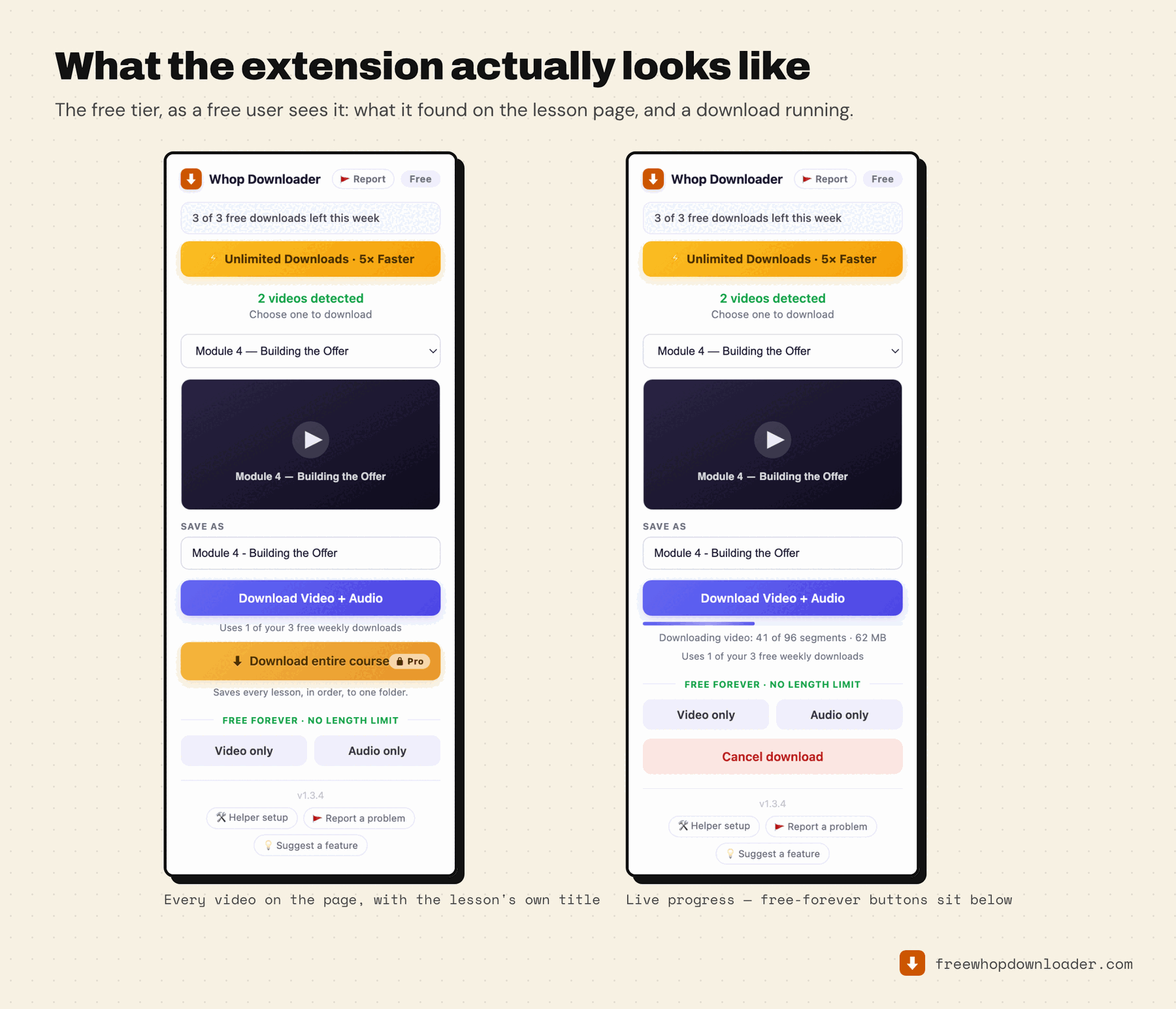
Click the extension icon. The lesson appears with its real title and its thumbnail as a preview. If the page holds more than one video, pick from the dropdown. Edit the filename if you like — it's pre-filled from the lesson title.
Then click Download Video + Audio. There's no resolution to choose: the extension automatically takes the highest-quality rendition the source offers. A progress bar shows the fetch and then the merge. Keep the tab open until it finishes — the merge runs in the browser and needs the tab alive.
The finished MP4 lands in your Downloads folder, named after the lesson, with a .vtt subtitle file next to it if the lesson has captions.
The optional helper app, and Gatekeeper
You do not need the helper app to download Whop videos. It exists for two cases: hour-plus lessons, where the in-browser merge can run out of memory, and the Pro whole-course download. If neither applies, skip this section entirely.
If you do install it, macOS Gatekeeper will flag it — it blocks anything not distributed through the App Store or signed with an Apple Developer certificate. That isn't a verdict on the app; it's the default for small independent tools.
Getting past it: when you double-click the installer and macOS says the app "cannot be opened because it is from an unidentified developer," close that dialog. Then open Finder, go to Downloads, right-click (or Control-click) the file and choose Open. This time the dialog has an actual Open button. Click it. macOS only asks once.
Alternatively: System Settings → Privacy & Security, scroll down, and there's an Open Anyway button for the blocked app.
If you clicked "Cancel" on the first Gatekeeper dialog and assumed the install failed — it did, but nothing is broken. Just run the right-click → Open route above on the same file you already downloaded.
Downloading on Apple Silicon (M1/M2/M3/M4)
The helper app has a native Apple Silicon build, so there's no Rosetta requirement. If the installer prompts you to install Rosetta, you have the Intel build — grab the arm64 version from the setup guide the extension links to.
The Safari problem (and why it won't be fixed)
Safari uses WebKit and Apple's own extension API, which doesn't expose the low-level network hooks this needs to see the Mux stream request. Chromium's extension API does. That's an architectural limit of Safari's model, not a feature someone forgot to build — it can't be worked around without Apple changing the API.
If Safari is your default browser, install Chrome or Brave just for Whop downloads. You don't have to switch permanently. (The same class of limit is why there's no iPhone or iPad version — every iOS browser is Safari's engine underneath.)
Method 2: yt-dlp from the terminal
If you're comfortable in a terminal and want no weekly cap at all, yt-dlp handles Whop's HLS streams directly.
brew install yt-dlp ffmpeg
The part that trips people up: you can't hand yt-dlp the Whop page URL. Whop's lessons are behind a signed, expiring Mux token, so you have to pull the actual .m3u8 URL out of DevTools first and pass that:
yt-dlp "https://stream.mux.com/<id>.m3u8?token=<jwt>" \
  -o "Module 4 - Building the Offer.mp4"
Free, unlimited, and the output is identical to the extension's. The trade-off is doing the DevTools step every time, and redoing it when a token expires. The full walkthrough — including finding the URL and what to do when the token dies mid-download — is in downloading Whop videos manually with yt-dlp.
Common Mac-specific issues
"No video detected even after pressing play." Refresh the page first, then play. Confirm you're on the lesson page itself rather than a course overview. If you want to verify the stream is loading at all, open DevTools → Network and filter for m3u8.
"The helper app crashes immediately." Usually a corrupted download. Delete it and reinstall from the extension's setup guide.
"Helper not found even after installing." Quit and reopen your browser — the extension needs a fresh connection to pick it up. If it still doesn't register, the popup's I've installed it — check again button re-runs the check.
"The download finishes but the file has no audio." You most likely used Video only, which is exactly that by design. Grab the audio-only file for the same lesson and merge them — neither download spends a credit.
The full list, across every platform, is in Whop video not downloading? Every fix, in order.