How to Download Whop Videos on Windows (Free Step-by-Step Guide)
How to download Whop course videos on Windows as MP4 files with the free browser extension. Covers SmartScreen, the optional helper app, OneDrive gotchas, and a yt-dlp fallback.
To download Whop videos on Windows, you need a Chromium browser and the free extension — and for most videos, nothing else. Video and audio are merged inside the browser, so there's no installer to run and no SmartScreen prompt to argue with. This guide covers the full process, the optional helper app (and its SmartScreen warning) for the cases that need it, the Windows-specific gotchas worth knowing, and a PowerShell fallback.
What you need
- Windows 10 or Windows 11
- Chrome, Edge, Brave, or Opera
- Logged-in access to the Whop video you want to save
How it works, so nothing surprises you
Whop hosts its course videos through Mux. Mux doesn't serve one MP4 — it serves an HLS stream, so your browser pulls dozens of small video chunks and dozens of small audio chunks and stitches them together on the fly. There's no download button because there's no single file.
The extension watches for that stream request, fetches both tracks at the best rendition the source offers, and merges them into a clean MP4 — inside the browser, using a WebAssembly build of ffmpeg. That's why the base case needs nothing installed.
Step-by-step: downloading on Windows
Step 1 — Install the extension
Install the free Whop Downloader from the Chrome Web Store, then pin it (puzzle icon → find Whop Downloader → click the pin). Having it visible saves time.
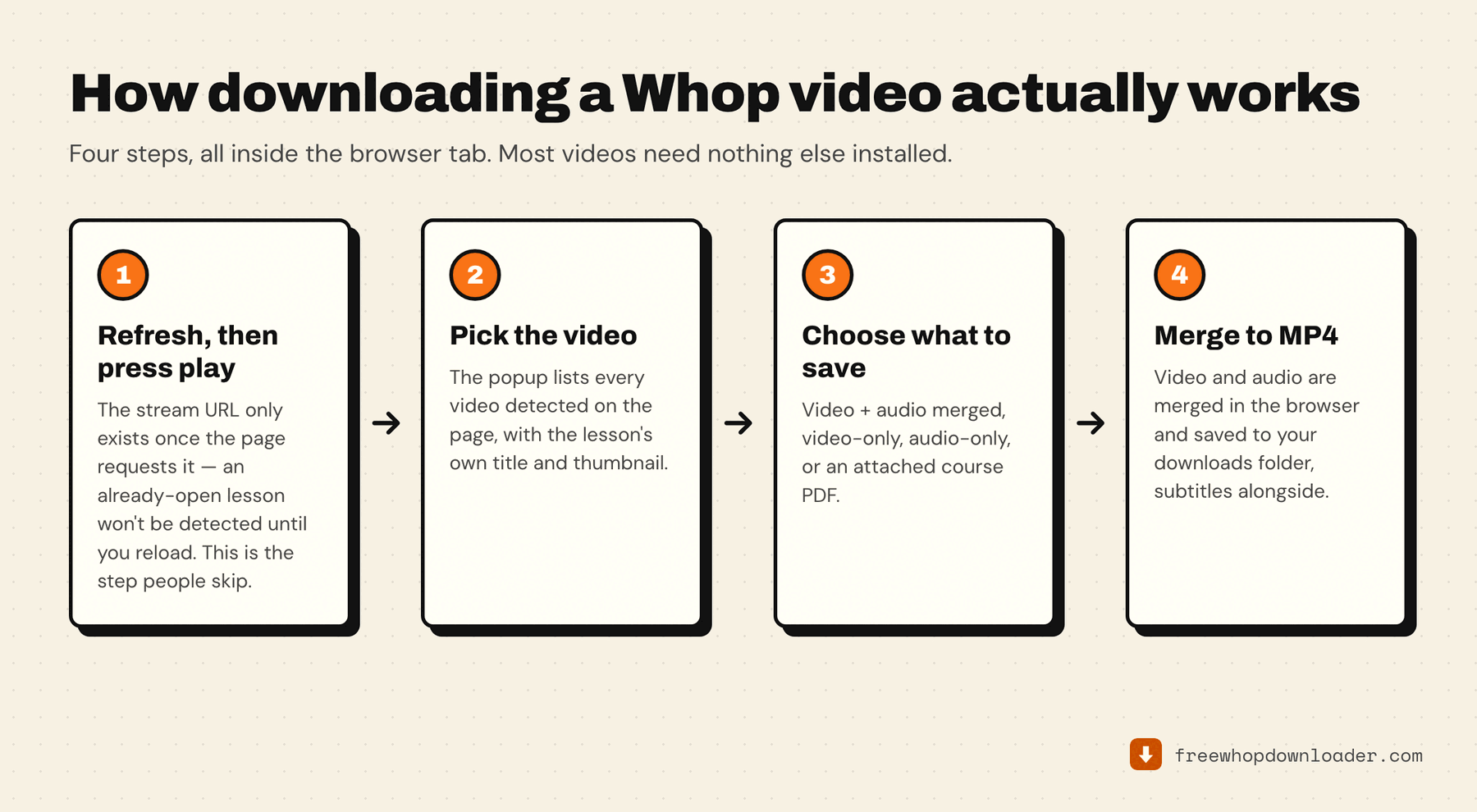
Step 2 — Open the lesson, refresh, then press play
Navigate to the Whop lesson. Reload the page, then press play and let it run a second or two.
This is the step most people miss. Mux's stream URLs are requested on demand when playback starts, and the extension finds the stream by watching that request go out. A tab that was already open never gives it the chance — which is why "no video detected" is the single most common complaint and why refreshing fixes it.
Step 3 — Open the popup and download
Click the extension icon. The lesson shows up with its real title and thumbnail; pick from the dropdown if the page has more than one video. The filename is pre-filled and editable.
Click Download Video + Audio. There's no quality dropdown — the extension automatically takes the highest-quality rendition available. The progress bar tracks the fetch, then the merge. Leave the Whop tab open until it's done.
The MP4 lands in your Downloads folder named after the lesson, with a .vtt subtitle file beside it if the lesson has captions. For a typical 1080p lesson this takes a minute or two — much faster than real time, because it's fetching stream data rather than recording playback.
How many downloads can run at once?
One. The in-browser merge uses a single exclusive worker, so merged downloads run sequentially rather than in parallel — start one, let it finish, start the next.
That isn't the limit people usually care about, though. The free tier's cap is 3 merged MP4s per week, and video-only and audio-only downloads are unlimited and never touch it. If you're archiving a lot, that free route is worth reading properly before you assume you need to pay.
For a genuinely hands-off run through a full course, the Pro whole-course download works through every lesson in order into one folder — covered in downloading an entire Whop course offline.
The optional helper app, and SmartScreen
You don't need it for normal downloads. It exists for hour-plus lessons, where the in-browser merge can exhaust the tab's memory, and for the Pro whole-course download.
If you install it, Windows Defender SmartScreen will likely show a blue "Windows protected your PC" dialog. That happens to any executable without a long enough download history for Microsoft to auto-trust — it's a reputation check, not a malware verdict. Click More info, then Run anyway.
If your IT policy blocks unsigned executables entirely, the yt-dlp route below needs no installer at all.
If you clicked "Don't run" on that dialog and assumed the install failed — it did, but nothing's damaged. Run the same installer again and take the More info → Run anyway path.
Common Windows-specific issues
"The download shows 100% but no file appears." Two likely causes. First, OneDrive: if it manages your Downloads folder, the file may be cloud-only. Check C:\Users\YourName\Downloads directly in File Explorer rather than the Downloads shortcut. Second, a download manager — IDM or Free Download Manager hooking Chrome's downloads will interrupt the save at the last step. Disable its browser extension and retry.
"Helper not found after installing." Close Chrome completely — check the system tray, since it often keeps running after the window closes — then reopen. The popup's I've installed it — check again button re-runs the check.
"A long lesson fails at the merge." That's the memory ceiling on the in-browser merger. Use the popup's option to save video and audio as separate files and join them locally, or install the helper app.
"The video looks lower resolution than it does on Whop." The extension takes the best rendition the source publishes. If it looks soft, that's what the creator uploaded.
The complete list, across platforms, is in Whop video not downloading? Every fix, in order. And if you're evaluating the extension against the alternatives first, every free Whop downloader compared lays them side by side.
Method 2: yt-dlp from PowerShell (no weekly caps)
For unlimited downloads without a GUI:
winget install yt-dlp.yt-dlp
winget install Gyan.FFmpeg
The catch: you can't hand yt-dlp the Whop page URL. Whop's streams sit behind a signed, expiring Mux token, so you need to pull the real .m3u8 URL out of DevTools (Network tab, filter m3u8, copy link address) and pass that:
yt-dlp "https://stream.mux.com/<id>.m3u8?token=<jwt>" `
  -o "Module 4 - Building the Offer.mp4"
Free, unlimited, works on Windows 10 and 11, and produces the same file the extension does. The cost is repeating the DevTools step per video and redoing it when a token expires. Full walkthrough: downloading Whop videos manually with yt-dlp.